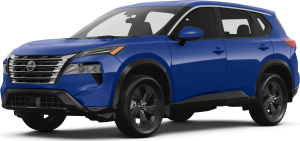

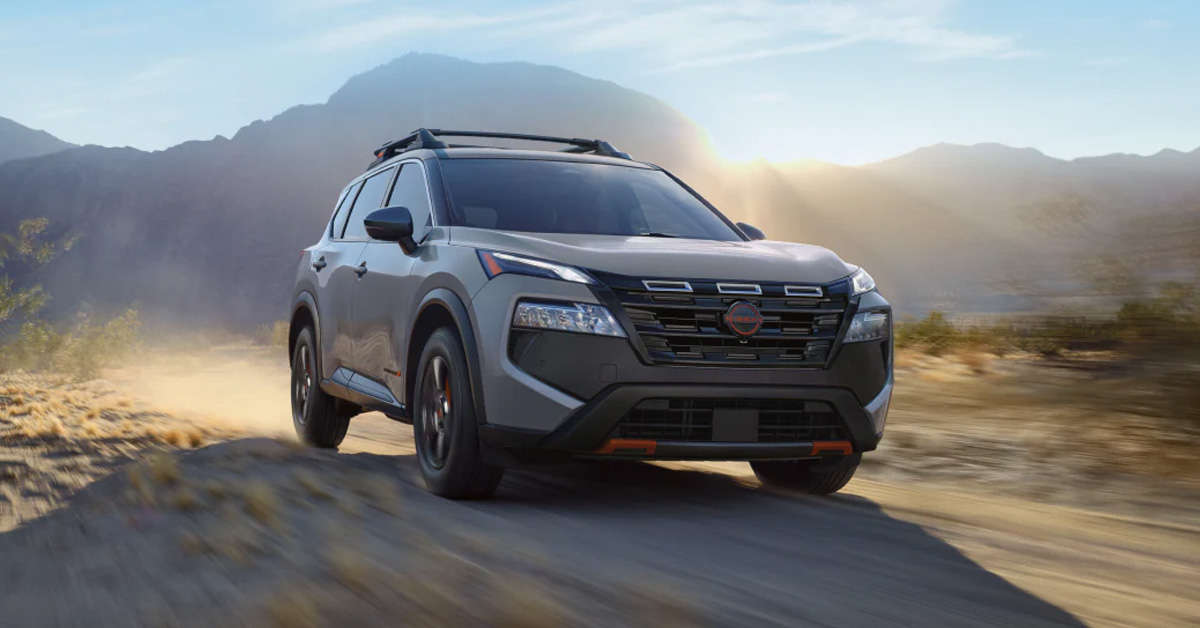
How Do You Activate Standard Cruise Control in the Rogue?
Cruise control in a 2026 Nissan is designed to make long drives and highway travel easier by maintaining a steady speed without keeping your foot on the accelerator.
Activating cruise control in the Rogue is straightforward once you understand the controls and the sequence. The system is designed to be intuitive, letting you maintain a steady speed on highways or open roads while keeping your focus on driving. Following a clear Nissan cruise control guide ensures you can use the feature safely and confidently.
Step-by-Step Activation
To get started with standard cruise control in the Rogue:
- Turn on the system: Press the Main (On/Off) button located on the right side of the steering wheel. A white cruise control icon will appear on the dashboard to confirm activation.
- Reach your desired speed: Accelerate to the speed you want to maintain, typically above 25 mph.
- Set the speed: Push the toggle switch down toward SET -. You can now remove your foot from the accelerator while the Rogue maintains the selected speed.
Adjusting and Resuming Speed
Once cruise control is active, you can make small adjustments or resume your previous speed:
- Increase speed: Tap or hold the toggle up toward RES +.
- Decrease speed: Tap or hold down toward SET -.
- Cancel: Press the CANCEL button or tap the brake pedal to disengage the system.
- Resume: Push the toggle up toward RES + to return to your last set speed.
Why This Matters
Using standard cruise control reduces driver fatigue on long drives near Centereach or Farmingville, helps maintain a consistent speed for fuel efficiency, and allows you to enjoy a smoother, more relaxed ride.
To see how easy it is to activate and adjust cruise control in the Rogue, visit Nissan of Sumter. Our team can walk you through the controls, provide hands-on demonstrations, and let you experience the comfort of steady highway driving firsthand.
How Does Cruise Control Work in a 2026 Nissan?
Whether you are behind the wheel of a Rogue or another model, understanding how to set cruise control Nissan 2026 ensures smoother, more relaxed driving while improving fuel efficiency and reducing fatigue on long trips.
Standard Cruise Control
Most Nissan vehicles, including the Rogue, come equipped with standard cruise control that allows you to:
- Activate the system: Press the Main (On/Off) button on the steering wheel. A white icon confirms activation.
- Set your speed: Accelerate to your desired speed (typically above 25 mph) and push the toggle toward SET -.
- Adjust speed: Tap or hold the toggle up to increase speed (RES +) or down to decrease (SET -).
- Cancel or resume: Tap CANCEL or press the brake pedal to disengage, then use RES + to resume your previous speed.
Adaptive Cruise Control with ProPILOT Assist
Nissan’s ProPILOT Assist adds advanced features to standard cruise control, including radar and camera-based adaptive speed adjustments. Key benefits include:
- Maintaining distance: Set a following distance to the vehicle ahead using the Distance button, with options for Long, Middle, or Short.
- Stop-and-go traffic support: The system can bring the Rogue to a complete stop and resume automatically in traffic.
- Lane-centering: Steering Assist helps keep the vehicle centered in the lane when active.
Why Cruise Control Matters
Using cruise control, especially on highways or long commutes near Centereach or Selden, reduces stress and allows you to focus more on the road. It also helps maintain consistent speed, which can improve fuel efficiency and overall driving comfort.
If you want to experience how easy it is to use cruise control in a Rogue or any other Nissan, visit Nissan of Sumter. Our team can walk you through the controls, demonstrate ProPILOT Assist, and let you try it in real-world driving conditions.
How Do You Use ProPILOT Assist on Your Nissan?
ProPILOT Assist takes cruise control to the next level by combining speed management with steering support. In a Rogue equipped with this system, you can maintain a set speed, keep a safe following distance, and stay centered in your lane without constant steering input. Understanding how Nissan adaptive cruise control works allows you to navigate highways and traffic more comfortably and confidently.
Activating ProPILOT Assist
To use ProPILOT Assist in your Rogue:
- Press the ProPILOT button on the right side of the steering wheel. The system will enter standby mode, indicated by a blue icon.
- Set your target speed by accelerating to your desired pace, then push the toggle down toward SET -. Icons will turn green to confirm active control.
- Adjust the following distance using the Distance button, which allows you to select Long, Middle, or Short spacing from the vehicle ahead.
Steering and Traffic Management
ProPILOT Assist also provides lane-centering support when your vehicle is traveling on clearly marked highways:
- Lane guidance: Steering Assist helps keep the Rogue in the center of the lane, reducing constant micro-corrections.
- Stop-and-go traffic: The system can bring the vehicle to a full stop and resume automatically. If stopped for more than a few seconds, press RES + or tap the accelerator to move again.
Tips for Safe Use
- Keep your hands lightly on the wheel, even when Steering Assist is active.
- Be aware of weather or road conditions, as heavy rain or snow may affect system performance.
- Watch for dashboard indicators to ensure ProPILOT is actively controlling speed and steering.
Drivers from Centereach, Coram, and Selden can experience the convenience of ProPILOT Assist firsthand at Nissan of Sumter. Stop by or schedule a visit to learn how adaptive cruise control enhances safety and makes every highway drive smoother.
How Can You Adjust Speed and Distance Safely?
Adjusting speed and following distance in a Rogue equipped with cruise control is essential for maintaining safe and efficient driving. Knowing the proper way to use Nissan cruise control and how to use its features ensures you can react to traffic changes without compromising comfort or safety.
Adjusting Speed
Once cruise control is active:
- Increase speed: Tap or hold the toggle up toward RES + to raise your set speed in small increments.
- Decrease speed: Tap or hold the toggle down toward SET - to reduce your speed gradually.
- Override temporarily: Press the accelerator to speed up for passing or merging, then release to return to your preset speed.
Adjusting Following Distance
For adaptive cruise control or ProPILOT Assist:
- Set distance: Use the Distance button to choose between Long, Middle, or Short spacing from the vehicle ahead.
- Monitor traffic: Even with adaptive cruise control, maintain attention to changing traffic conditions. Adjust distance as needed in heavy traffic or adverse weather.
Safe Driving Practices
- Keep your hands on the wheel and eyes on the road, even when systems are active.
- Use small, gradual adjustments to avoid sudden acceleration or deceleration.
- Pay attention to dashboard indicators to confirm that cruise control and following distance settings are active.
Drivers in Centereach, Selden, or Farmingville can stop by Nissan of Sumter to see these controls in action. Our team can demonstrate how to adjust speed and distance safely in real-world conditions, ensuring you feel confident using the Rogue’s cruise control features every time you drive.
What Should You Know About Cruise Control Limitations?
While cruise control in the Rogue, including ProPILOT Assist Nissan, adds convenience and reduces fatigue, it’s important to understand its limitations to stay safe on the road. These systems assist with speed and lane-keeping, but they are not substitutes for attentive driving or manual control.
Environmental and Road Conditions
- Weather impact: Heavy rain, snow, or fog can interfere with radar sensors, causing adaptive cruise features to deactivate.
- Road markings: Lane-centering and steering assist rely on clear lane lines, so construction zones or faded markings may limit functionality.
- Steep grades: Cruise control may have reduced effectiveness when climbing or descending steep hills, requiring driver input.
System Boundaries
- Traffic scenarios: Stop-and-go traffic is handled by ProPILOT, but abrupt lane changes or cut-ins may require manual braking or steering.
- Vehicle speed: Standard cruise control has a minimum speed threshold, usually around 25 mph, while adaptive systems may have upper limits in certain situations.
- Driver attention: ProPILOT Assist requires your hands on the wheel and eyes on the road at all times. It is a driver aid, not a replacement for vigilance.
Practical Tips for Drivers
- Use cruise control primarily on highways or open roads.
- Adjust the following distance and speed in congested areas or poor weather.
- Be ready to take manual control when conditions exceed the system’s capabilities.
Drivers near Coram, Centereach, or Farmingville can visit Nissan of Sumter to experience firsthand how ProPILOT Assist Nissan works in different conditions. Our team can demonstrate proper usage and answer questions to help you drive with confidence while enjoying the Rogue’s advanced cruise control features.
How do I turn on cruise control in my Nissan?
Press the Main (On/Off) button on the right side of the steering wheel. A white cruise control icon will appear in the instrument cluster, indicating the system is active.
What is the difference between standard and adaptive cruise control in Nissan?
Standard cruise control maintains a set speed, while adaptive cruise control (ProPILOT Assist) uses radar and cameras to automatically adjust your speed to maintain a safe distance from the vehicle ahead.
How does Nissan ProPilot Assist work with cruise control?
ProPILOT Assist adds steering assist and traffic-aware features. It maintains your set speed, adjusts following distance, and can even bring the vehicle to a full stop in traffic, resuming when conditions allow.
How do I adjust cruise control speed in my Nissan?
Use the toggle switch on the steering wheel: push up toward RES + to increase speed or down toward SET - to decrease speed. Pressing the accelerator temporarily overrides the set speed, returning to the preset once released.
Does cruise control work in traffic with ProPilot Assist?
Yes, ProPILOT Assist is designed to handle stop-and-go traffic by maintaining distance and bringing the vehicle to a full stop when necessary, but drivers must remain attentive and ready to take control.
Explore Nissan Vehicles and Learn More About Your Options
If you’re in Centereach, Coram, Selden, or Farmingville, now is the perfect time to explore our wide selection of Nissan vehicles, including the Rogue. Whether you’re interested in advanced features like cruise control or want a vehicle that fits your daily driving needs, our new inventory may have what you're looking for.
We can help you navigate all your options, from buying, leasing, and financing a Nissan in Sumter, SC, to comparing configurations with our Nissan Frontier 4x2 vs 4x4, and exploring features like ProPILOT Assist and the Utili-Track system. Understanding these choices ensures you select the right vehicle, drivetrain, and plan for your lifestyle.
Contact us today or visit our showroom to test drive a Rogue and experience these features firsthand. Our staff is ready to answer your questions, assist with financing, and provide service and parts support, giving you a seamless experience from start to finish.
Contact Nissan of Sumter
Get Directions to Nissan of Sumter
Disclaimer: All information is provided for general informational and entertainment purposes only. While we strive for accuracy, we cannot guarantee that all content is complete, current, or error-free. Any reliance you place on such information is strictly at your own risk. This article may include opinions and is not endorsed by, or officially affiliated with, any vehicle manufacturer or brand. Always consult official sources – such as the vehicle’s owner’s manual, authorized dealerships, or certified professionals – for the most up-to-date and personalized information.