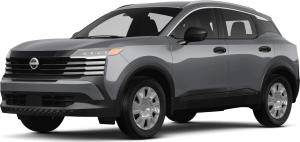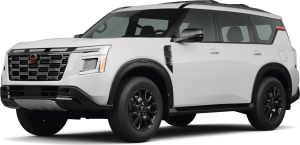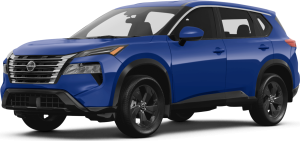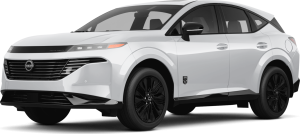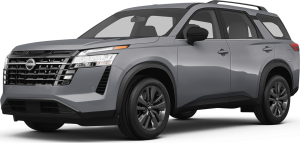

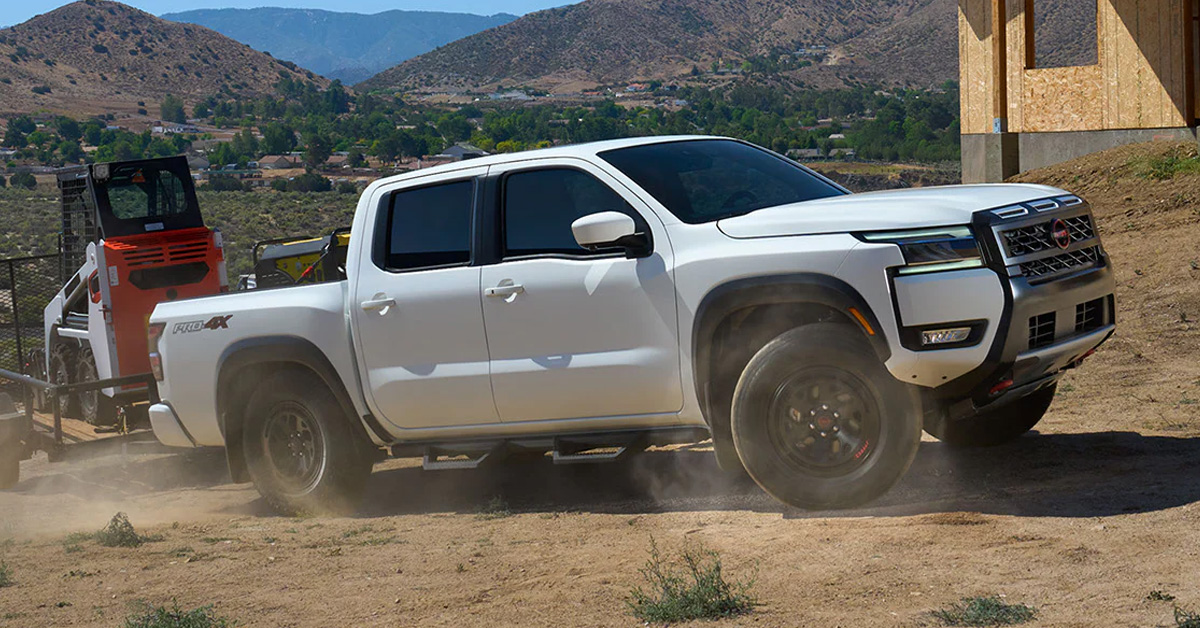
Simple issues like damaged USB cables, outdated software, disabled Siri permissions, or wireless connection glitches usually cause Apple CarPlay problems in a Nissan. Whether you drive a Frontier, Rogue, or Pathfinder, most Apple CarPlay connection issues can be fixed quickly with a few troubleshooting steps, including resetting NissanConnect, reconnecting your iPhone, or updating your device settings. Drivers dealing with Nissan Apple CarPlay not working, Nissan Apple CarPlay wireless not working, or Nissan Apple CarPlay failed to start errors can often restore connectivity without major repairs.
At Nissan of Sumter, our team is here to help drivers throughout Sumter, Camden, Columbia, and Orangeburg keep their vehicles connected and running smoothly. From helping diagnose infotainment issues to handling routine maintenance, genuine Nissan parts, and professional service, we are committed to supporting every part of your ownership experience. Contact our dealership today or stop by to explore our inventory, schedule service, or get expert assistance with your Frontier, Rogue, Pathfinder, and more.
Why Does Apple CarPlay Stop Connecting in Some Nissan Models?
When drivers experience Nissan Apple CarPlay not working issues, the problem is often due to a minor connection issue rather than a major system defect. In many cases, a Frontier, Rogue, or Pathfinder may suddenly stop recognizing an iPhone because of a damaged USB cable, outdated phone software, or interrupted wireless pairing settings. Even something as simple as plugging into the wrong USB port can prevent Apple CarPlay from launching properly.
Modern Nissan infotainment systems rely on constant communication between the vehicle and your phone. If one part of that connection chain fails, CarPlay may freeze, disconnect, or refuse to start altogether.
Common Reasons Apple CarPlay Stops Working
Here are some of the most frequent causes drivers encounter:
- Faulty or low-quality USB cables
- Outdated iOS software
- Disabled Siri or CarPlay permissions
- Bluetooth or Wi-Fi pairing conflicts
- Temporary NissanConnect software glitches
- Overheating during wireless charging use
For example, many Rogue and Pathfinder drivers use wireless charging while streaming navigation and music through wireless CarPlay. During hot South Carolina afternoons, that extra demand can cause an iPhone to overheat and temporarily disconnect from the vehicle.
Why Some Connection Problems Seem Random
CarPlay issues do not always happen consistently. A Frontier owner may drive for weeks without a problem, then suddenly notice repeated disconnects after an iPhone update. In other situations, the system may work perfectly with one phone but not another because of individual device settings or software compatibility.
Several factors can influence connectivity, including:
- Phone age and operating system version
- Wireless signal interference
- Cached Bluetooth pairing data
- Infotainment software updates
- Charging port debris or cable wear
Because these systems are highly integrated, even a small interruption can prevent CarPlay from loading normally.
Simple Troubleshooting Often Solves the Problem
Before scheduling a service appointment, drivers can often restore connectivity by:
- Restarting the NissanConnect system
- Forgetting and reconnecting the phone
- Switching to an Apple-certified cable
- Updating iOS and infotainment software
- Checking that Siri and CarPlay permissions remain enabled
If your Frontier, Rogue, or Pathfinder continues experiencing connection problems, our team at Nissan of Sumter can help diagnose the issue and ensure your infotainment system is operating correctly. Whether you need software support, system updates, or professional service, we are here to help drivers throughout Sumter, Camden, Columbia, and Orangeburg stay connected on the road.
Could a Faulty USB Cable or Port Be Causing the Problem?
Is the NissanConnect System Causing Apple CarPlay Issues?
Sometimes the problem is not the phone or cable at all. The NissanConnect infotainment system itself can occasionally freeze, lag, or fail to recognize a connected device, especially after a software update or interrupted startup sequence. Drivers often describe the issue as Nissan Apple CarPlay failed to start because the screen stays black, the connection loops endlessly, or the system never launches the CarPlay interface.
Like any advanced software platform, temporary glitches can occur when cached data builds up or background processes stop responding correctly.
Common Signs of a NissanConnect Glitch
A system-related issue usually presents itself differently than a bad cable or damaged phone connection.
Watch for symptoms like:
- Apple CarPlay connects briefly, then disconnects
- The infotainment screen freezes or becomes unresponsive
- Bluetooth audio works, but CarPlay will not launch
- The system displays a loading message indefinitely
- Touchscreen controls react slowly
- The screen remains blank after plugging in the phone
In many Pathfinder models, drivers notice these problems shortly after an iPhone software update or after reconnecting multiple devices to the system over time.
A Soft Reset Can Often Restore Connectivity
One of the easiest troubleshooting steps is performing a soft reboot of the NissanConnect system. This clears temporary software conflicts without affecting saved settings or paired devices.
How to Restart the NissanConnect System
- Park the vehicle safely
- Press and hold the volume or power knob
- Continue holding for roughly 10 to 15 seconds
- Wait for the screen to shut off and reboot
- Reconnect the iPhone after startup finishes
This simple reset often restores proper communication between the infotainment system and Apple CarPlay.
Software Updates Matter More Than Many Drivers Realize
Infotainment systems and smartphones constantly evolve. If either side falls behind on software updates, compatibility issues can appear unexpectedly.
To help reduce connection problems:
- Keep iOS updated on your iPhone
- Install NissanConnect software updates when available
- Remove old unused Bluetooth devices
- Re-pair your phone after major software updates
- Restart both the phone and vehicle periodically
Drivers throughout Sumter, Camden, and Orangeburg often assume a hardware failure is developing when the issue is actually software-related and relatively simple to correct.
If your Pathfinder continues experiencing connection issues after troubleshooting, our team at Nissan of Sumter can inspect the NissanConnect system, check for software updates, and help restore reliable Apple CarPlay functionality.
Are iPhone Settings Preventing Apple CarPlay From Working?
Sometimes the vehicle is functioning correctly, but the iPhone itself is blocking the connection. Many drivers dealing with Nissan Apple CarPlay not connecting issues are surprised to learn that a disabled setting, privacy restriction, or outdated permission can completely prevent the system from launching.
This situation is especially common after an iOS update, when certain permissions may reset automatically. Drivers in vehicles like the Frontier often notice that CarPlay suddenly stops working even though the phone still charges normally and Bluetooth audio continues playing without problems.
Siri Must Be Enabled for Apple CarPlay
Apple CarPlay depends heavily on Siri integration. If Siri is disabled, the system cannot establish the secure connection needed to launch the interface.
Check These Siri Settings on Your iPhone
Go to:
Settings → Siri & Search
Make sure these features are enabled:
- Listen for “Hey Siri”
- Press Side Button for Siri
- Allow Siri When Locked
Even one disabled option can interrupt the CarPlay startup process.
Screen Time Restrictions Can Block CarPlay
Apple’s Screen Time settings can accidentally disable CarPlay access, especially on shared family devices or phones with parental controls enabled.
Verify CarPlay Permissions
Navigate to:
Settings → Screen Time → Content & Privacy Restrictions → Allowed Apps
Then confirm that:
- CarPlay is turned on
- Siri access is allowed
- USB accessories are permitted when locked
If these settings are disabled, the Frontier infotainment system may repeatedly fail to recognize the phone even though the cable and USB port are functioning properly.
Resetting the CarPlay Connection Can Help
If the phone previously connected successfully but suddenly stopped working, clearing the saved connection profile often resolves the issue.
Steps to Reconnect Apple CarPlay
- Open Settings → General → CarPlay
- Select your Nissan vehicle
- Tap Forget This Car
- Delete the phone from the Nissan Bluetooth menu
- Restart both the iPhone and vehicle
- Pair the devices again from scratch
This process removes corrupted pairing data that can interfere with future connections.
Small Settings Can Cause Big Frustrations
Drivers often assume a hardware issue exists when the problem is actually buried inside the phone’s settings menu. Something as simple as a disabled Siri permission or restricted USB access can stop Apple CarPlay from launching entirely.
If troubleshooting steps still do not restore functionality, our team at Nissan of Sumter can help diagnose the issue and make sure your Frontier, Rogue, or Pathfinder connects properly again.
Can Wireless Charging and Overheating Interrupt Apple CarPlay?
Yes, overheating can absolutely interfere with Apple CarPlay performance. Many drivers searching for how to fix Apple CarPlay in Nissan vehicles overlook the impact that wireless charging, GPS navigation, streaming apps, and summer temperatures can have on an iPhone’s internal systems.
Modern vehicles like the Frontier, Rogue, and Pathfinder often combine wireless Apple CarPlay with wireless charging pads. While convenient, both systems generate heat simultaneously. Add navigation, music streaming, and bright screen usage, and the phone may begin protecting itself by reducing performance or temporarily disabling wireless functions.
Why Phones Overheat During Apple CarPlay Use
Wireless charging naturally creates heat. When combined with constant wireless data transfer, the phone’s processor and battery work much harder than usual.
Common situations that increase phone temperature include:
- Using wireless charging and wireless CarPlay together
- Running navigation apps for long trips
- Streaming music or podcasts continuously
- Leaving the phone in direct sunlight
- Driving during hot South Carolina afternoons
- Using a thick protective phone case
Drivers commuting between Sumter and Columbia often notice connection interruptions during longer drives when the phone remains on the charging pad for extended periods.
What Happens When an iPhone Gets Too Hot?
When the iPhone reaches a certain temperature threshold, Apple automatically activates thermal protection measures. This helps prevent battery or processor damage.
You may notice:
- Apple CarPlay disconnecting unexpectedly
- Slower screen response
- Audio lag or freezing
- Wireless charging shutting off
- The phone displaying a temperature warning
- Navigation apps crashing or restarting
In some Rogue and Pathfinder models, the issue can appear random because the system reconnects once the phone cools down again.
Simple Ways to Reduce Overheating
Fortunately, this problem is often easy to manage without major repairs or complicated troubleshooting.
Tips to Keep Apple CarPlay Running Smoothly
- Remove the phone from the wireless charger occasionally
- Use a wired USB connection during long trips
- Avoid placing the phone in direct sunlight
- Remove bulky phone cases while charging
- Close unused background apps
- Keep iOS updated
- Lower screen brightness when possible
Switching temporarily to a wired connection is often the fastest solution when wireless Apple CarPlay becomes unstable.
When the Problem Continues
If Apple CarPlay disconnects repeatedly even after cooling the phone and resetting the system, the issue may involve NissanConnect software, charging hardware, or connectivity settings inside the vehicle itself.
Our team at Nissan of Sumter can help diagnose recurring Apple CarPlay concerns in the Frontier, Rogue, Pathfinder, and other Nissan models. We can also help ensure your infotainment system software is fully updated and operating correctly.
Why did Apple CarPlay stop working in my Nissan?
Apple CarPlay may stop working in your Nissan because of a damaged USB cable, outdated NissanConnect software, disabled Siri settings, iPhone privacy restrictions, or wireless connection overheating issues.
How can I fix Apple CarPlay connection issues in my Nissan?
You can fix Apple CarPlay connection issues by using an Apple-certified USB cable, restarting the NissanConnect system, enabling Siri and CarPlay permissions on your iPhone, and reconnecting the device through a fresh setup process.
How can I reset Apple CarPlay in my Nissan?
You can reset Apple CarPlay by deleting the vehicle from your iPhone’s CarPlay settings, removing the phone from the Nissan Bluetooth menu, restarting both devices, and pairing them again from scratch.
Why does Apple CarPlay suddenly disconnect in my Nissan?
Apple CarPlay may suddenly disconnect because of loose USB connections, wireless signal interruptions, overheating from wireless charging, software bugs, or outdated iPhone or NissanConnect system software.
Stay Connected With Nissan Technology That Works for Your Drive
Technology problems can quickly turn a simple commute into a frustrating experience, especially when navigation, music, calls, and messaging suddenly stop working. Whether you drive a Frontier for weekend projects, a Rogue for family travel, or a Pathfinder for long South Carolina road trips, keeping your infotainment system running properly helps make every drive smoother and more convenient.
At Nissan of Sumter, our team is here to help drivers from Sumter, Camden, Columbia, and Orangeburg troubleshoot connectivity concerns, explore vehicle technology features, and find the right Nissan for their lifestyle. We proudly offer a wide selection of new and pre-owned Nissan models, along with expert service, financing assistance, and ongoing support long after the sale.
Drivers interested in learning more about advanced Nissan technology can continue exploring features like driver assistance systems, pickup capability comparisons, and long-term SUV ownership insights throughout our site. Topics such as intelligent highway driving support, midsize truck capability comparisons, and guidance on choosing the right Rogue model year can help shoppers make more confident decisions before purchasing their next vehicle.
If your Apple CarPlay issues continue or you are ready to upgrade to a newer Nissan with the latest connectivity features, contact our team today or stop by Nissan of Sumter to explore our new inventory and available financing options.
Contact Nissan of Sumter
Get Directions to Nissan of Sumter
Disclaimer: All information is provided for general informational and entertainment purposes only. While we strive for accuracy, we cannot guarantee that all content is complete, current, or error-free. Any reliance you place on such information is strictly at your own risk. This article may include opinions and is not endorsed by, or officially affiliated with, any vehicle manufacturer or brand. Always consult official sources – such as the vehicle’s owner’s manual, authorized dealerships, or certified professionals – for the most up-to-date and personalized information.